The NanWick Bar

Showing posts with label Utilities. Show all posts

NanWick Windows 8 Switch Boot : Bring back Windows 7 style Boot Menu

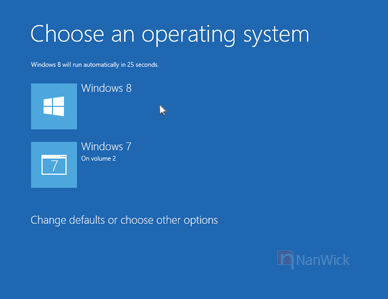
As we know Windows 8 RTM is released to public. One of the new feature included in the Windows 8 is Metro Boot Menu. Which is completely different from old one's. And it also allows the mouse pointer to select an operating system.


But the things that troubles users are :
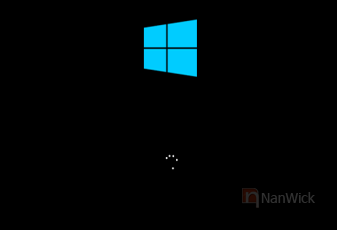
1. It appears a loading screen before Boot menu :


2. For users with dual operating systems, If you are selecting an O.S other than Windows 8 it'll boot only after restart.

 Comparing to new Boot Menu, the old one is fast and simple. It might be better getting old boot menu for the users with dual O.S. Windows 8 Switch Boot is a solution for this problem.
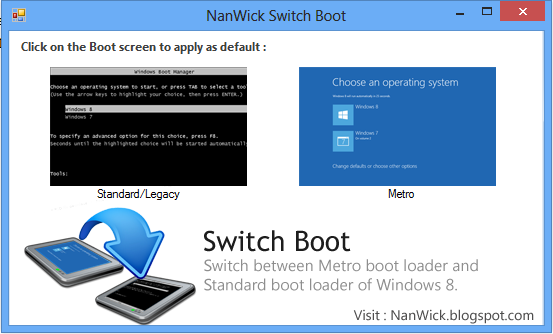
 You can bring back the Old Standard Windows 8 Boot Menu with NanWick Windows 8 Switch Boot. :


This tool will help you to switch between Metro Boot Screen and Standard boot screen. You can download this using the following link :


The users who are interested to what happens behind this tool and to do this manually check out the following steps:

1. First Goto %windir%\system32\ . (%windir% = C:\Windows if you have installed Windows in C drive)

2. Find cmd.exe. Once you find it Right click on cmd.exe and select Run as administrator.

3. Select any one of the following two commands and type it in the Command line window.
bcdedit /set {default} bootmenupolicy legacy            -To get old Boot screen
bcdedit /set {default} bootmenupolicy standard       -To get Metro style Boot screen

Don't forget to share your feedback about this tool :)

NanWick Exclusive : Windows 7 Logon Animator v3

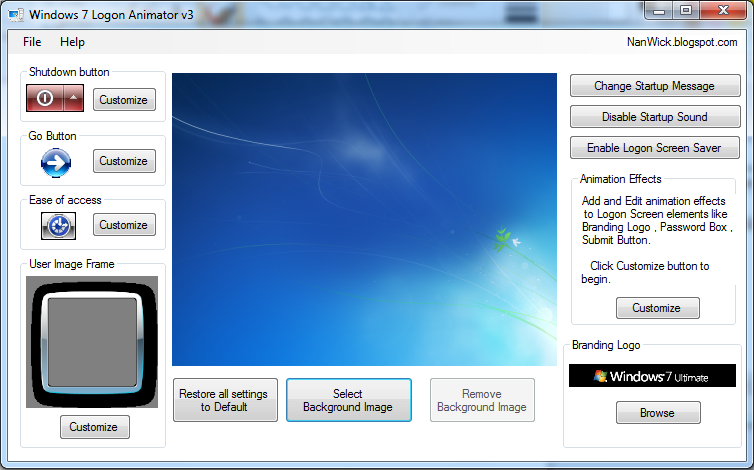
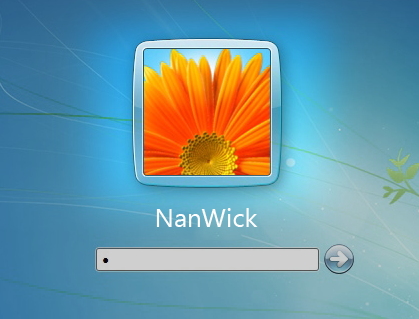
Windows 7 became the favorite operating system for the most of Windows users. One of the attractive feature of Windows 7 is it's logon screen itself. But, since it is appears in each time when you power on the system,it might be boring to see the same thing again and again. Many of us think that "It might be better to customize it". But Microsoft had not created an option to do the same inside Windows 7 .These thoughts had led me to create the 3rd updated version of our most popular tool Windows 7 Logon Editor.
 Since there are a lot of tools named as Windows 7 Logon Editor available on the web,the name of our tool is changed to Windows 7 Logon Animator.
 The new version is coming with some new features :


Windows 7 Logon Screen Saver
It allows you to enable screen saver at the logon itself.
Note : Screen savers which require DirectX could not be used in this method.

Animate Windows 7 Logon elements
It allows you to give simple animation effects to your WIndows 7 Logon screen elements. Check examples :

 
Normal
 
Fly from left
 
Ascent


And it also includes features of our older versions :
  • Customize Ease of access button.
  • Customize User Image Frame.
  • Customize Shutdown Options button.
  • Enable/Disable Startup Sounds.
  • Change Logon Screen Background.
  • Show/Hide shutdown button.
  • Edit shutdown button image.
  • Set transparency to Go button.
  • Edit go button image.
  • Change branding logo.
  • Add logon message.
You can download the tool using the link below. Don't forget to share your feedback's:

NanWick Exclusive : Windows 7 Logon Editor v2

Today we are releasing the updated version of our tool Windows 7 Logon Editor.

New features in Windows 7 Logon Editor v2

  • Customize Ease of access button.
  • Customize User Image Frame.
  • Customize Shutdown Options button.
  • Enable/Disable Startup Sounds.
  • The new interface.
One hot button to restore all settings to default, which helps you to remove all customizations you have made.


Download it using the below link:

 Share your feedback about this tool and don't forget to report if you have found any bug in this tool.

NanWick Exclusive : Windows 7 Logon Toolkit

Today I would like to share a new tool which helps you to start your favorite applications at your logon screen itself.I think sometimes this tool might be a blessing that at Logon screen you are free from firewall and antivirus.

Follow simple steps to use this tool :
1. Start NanWick Logon Toolkit and click Enable button.
2. Log off or Restart your Computer.
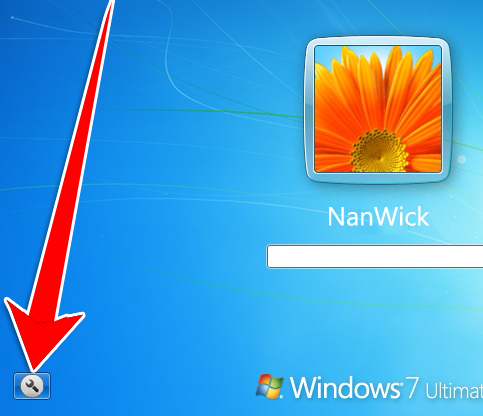
3. On the left bottom part of your Logon Screen you can see a button (Fig 1). Click it.

 Fig1
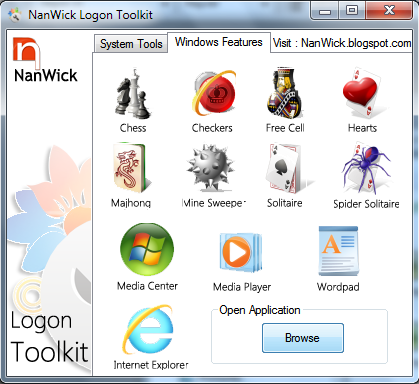
4. The application window will be opened. Most useful Windows applications are included in the Main window.
You can launch your Desired application by clicking Browse button under Windows Features Tab.(Fig 2)


 Fig 2
You can Disable Logon screen toolkit by clicking the Disable button in the application window. It can be Downloaded using the following link :

What Happens Behind

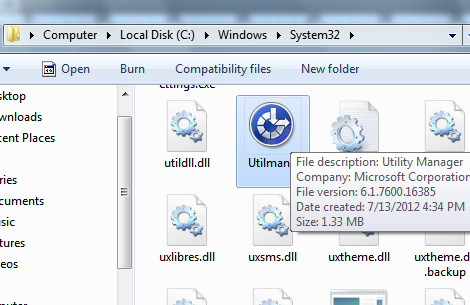
Actually this tool is replacing you Ease of Access menu at your Logon Screen. Before Enabling NanWick logon toolkit, When you press Ease of access button it opens an application named Utilman.exe Located in C:\Windows\System32 directory.


This tool replaces Utilman.exe with its own application file. It also makes a change in color and icon of Ease of access button by Replacing image resources of authui.dll located at C:\Windows\System32

NanWick Logon Toolkit in action


Watch Video : link

NanWick Exclusive : Windows 7 Start Button Changer

NanWick is releasing a new tool to customize Windows 7 Start button (also known as Orb).


How to customize the start button using this tool :
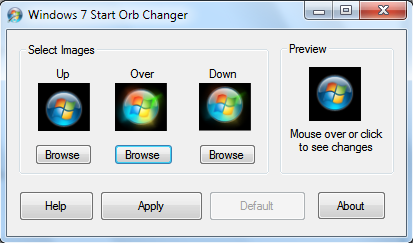
1.Select three images using the Browse button.
2.Click Apply to apply it as start button.
If you are not satisfied with the new button and you want to restore original Orb then click the Default button to restore original Orb.
 It might be better if the images are of resolution 54x54 pixels and the image lies in the center.

Use the link below to download this tool :

This is only the first build of this tool and we need your feedback to make more changes on this.

Actually What Happens Behind ??

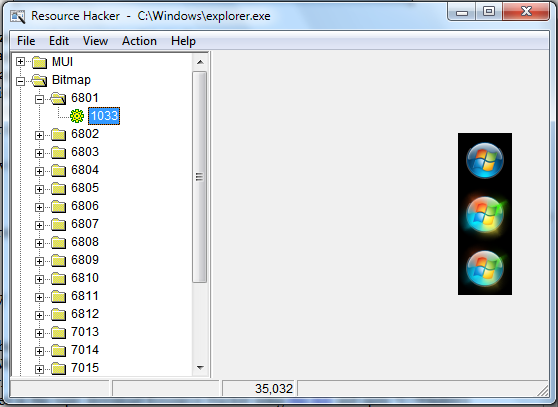
Windows 7 Start button resources are stored in "C:\Windows\explorer.exe" (Drive letter may be changed if you have installed Windows in another Local Disc). It can see through resource editing software's like Resource Hacker.
 If you're interested in this topic download Resource Hacker using this link and open "C:\Windows\explorer.exe" in Resource Hacker. Go to Bitmap > 6801 > 1033


This software creates a similar image using the images which you are selected and replaces these resources in "C:\Windows\explorer.exe". If you are an advanced user you can do it manually.

NanWick Exclusive : User Image Frame Changer for Windows 7

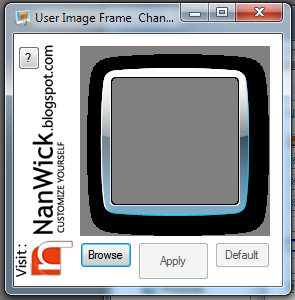
Due to user requests NanWick is releasing a solution for user image frame replacement. User image frame changer is a simple tool which helps you to change User image frame within one or two seconds.

User image frame (Highlighted in image)


How to use this tool :
1. Click Browse button and select a PNG image file.
2. Click the Apply button to set it as User Image frame.


Use Default button to restore your original User image frame.
Download this tool using the following link :

NanWick Exclusive : Windows 7 Logon Editor


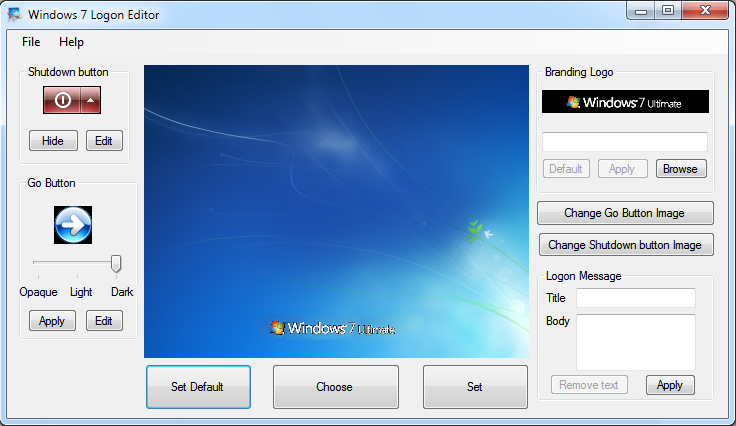
NanWick is releasing an exclusive application for Windows 7 Logon Screen customization. Please note that this tool can only be used in the Windows 7 operating system.


Windows 7 Logon Editor allows you to :
  • Change Logon Screen Background
  • Show/Hide shutdown button
  • Edit shutdown button image
  • Set transparency to Go button
  • Edit go button image
  • Change branding logo
  • Add a logon message
It also allows you to revert back all changes made by this tool. To know more about how to use this tool : Click Here.

You can download it using the following link:

NanWick MKV Archiver

A tool to encrypt personal files is essential for each and every computer user. Some of us are using Zip or Rar techniques for this purpose. But password crackers available for such archives makes them worried.
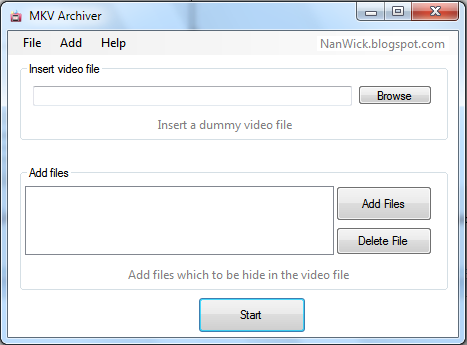
  Here NanWick is introducing a solution. Encrypt your personal files with a password and store it inside an Mkv Video file. Mkv archiver will help you to create such archives.


 It has a user free interface and easy to use. It also helps you to extract Mkv archives. Click here to know more about How to Use this utility.
It can be downloaded using following link.

Getting troubled with File access denied - How to unlock windows files from file protection


 We all know that windows have a file protection itself, which helps to protect files from accidental modification of system files. If we try to modify such protected files it'll show a message like this :


But if you want to customize your Windows yourself this feature becomes annoying.

Here i have a free utility named Unlocker, Which helps you to :

  • Rename protected file
  • Delete protected file
  • Replace protected file
  • Move protected file  
To download this for free click the link below :


You need to start this application with administrative privileges. For this right click on UnLockR's icon and click on "Run as administrator" (Fig 1)


                            Fig 1                                                                   Fig 2


If you are using Windows Vista or any other previous edition of Windows you require .Net framework 3.5 or other latest edition to run this application.